Variables
Add and configure template variables for dynamic document content.
Variables are placeholders in a template that accept different values for each document -- such as a recipient's name, email address, or answers to specific questions. When a document is created from the template, the variable placeholders are replaced with the actual values provided.
Adding Variables to PDF Templates
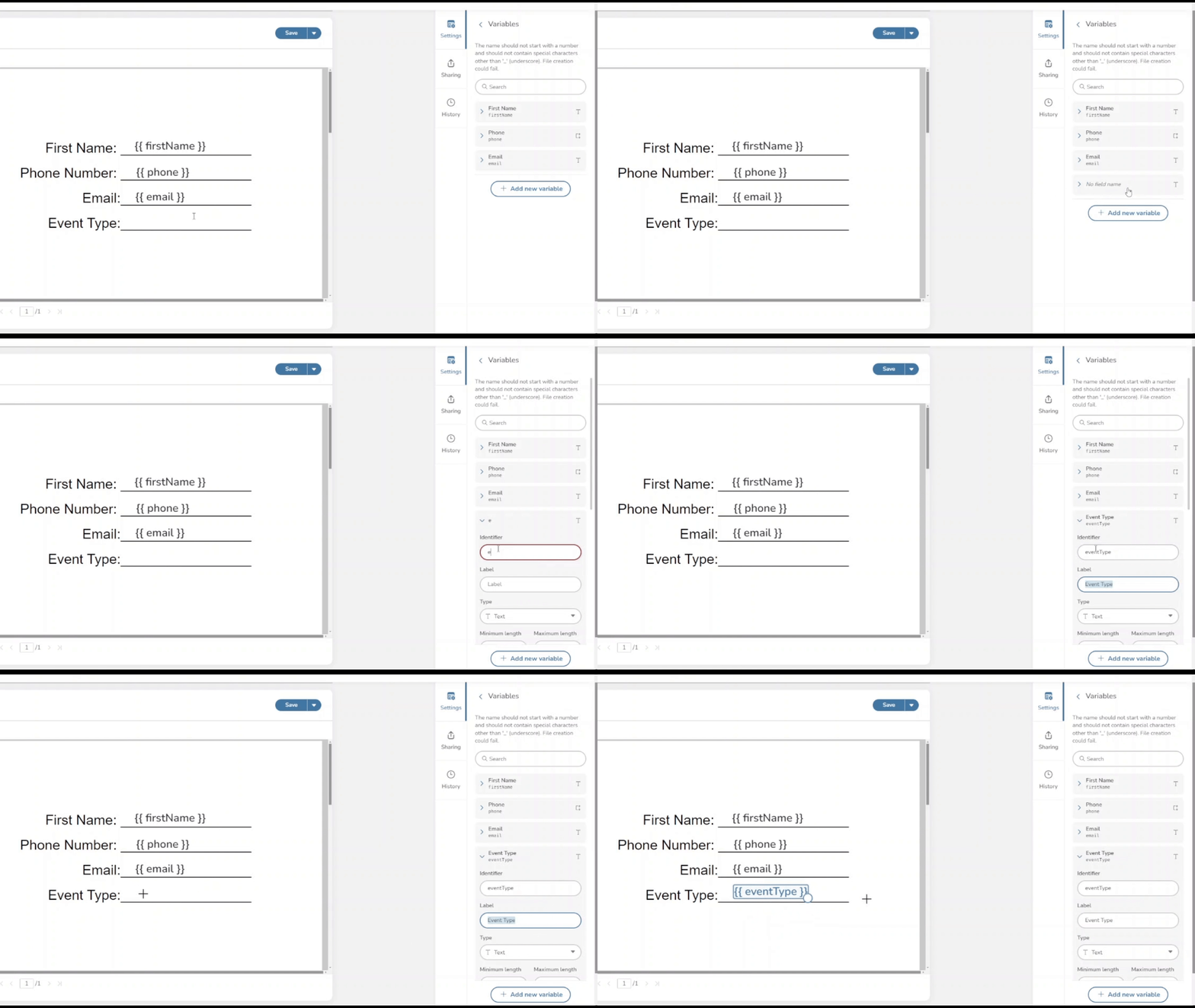
To add a variable to a PDF template:
- Click the +Add variable button.
- Enter a name for the variable.
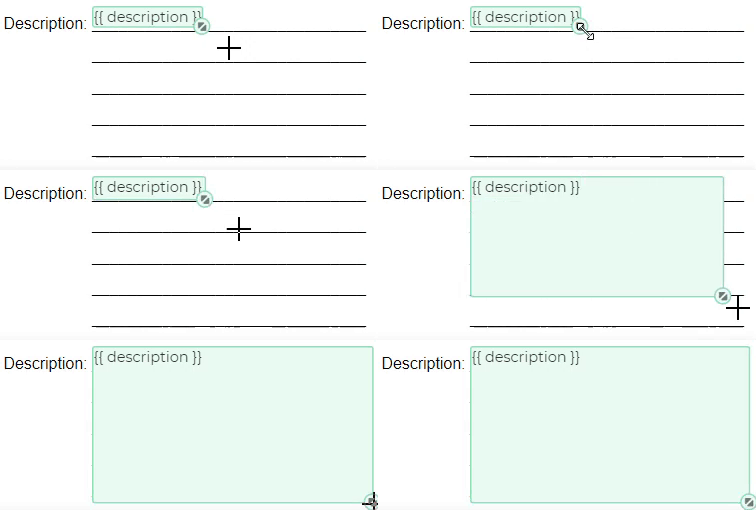
- Position the variable on the document preview by clicking the desired location.
- Use the resize tool to adjust the area allocated to the variable.
- Adjust the font size if needed to match the surrounding document text.
Adding Variables to DOCX Templates
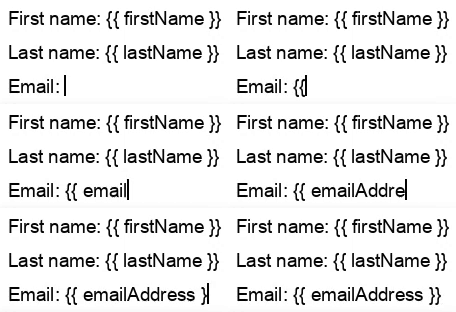
For DOCX templates, there are two approaches:
- Edit in the embedded editor -- Open the template content for editing and type the variable name enclosed in braces (e.g.,
{firstName}). - Download, edit, re-upload -- Download the
.docxfile, add the variable placeholders in your desktop editor, then upload the updated file back to DocQ.
Variable Naming Rules
When naming variables, follow these rules:
- Each variable name must be unique within the template.
- The first character cannot be a number.
- The only special character allowed is the underscore (
_). No spaces, hyphens, or other symbols. - Use camelCase by convention (e.g.,
firstName,companyAddress).
Editing Variable Settings
After adding a variable, you can configure its properties by selecting it in the variables panel.
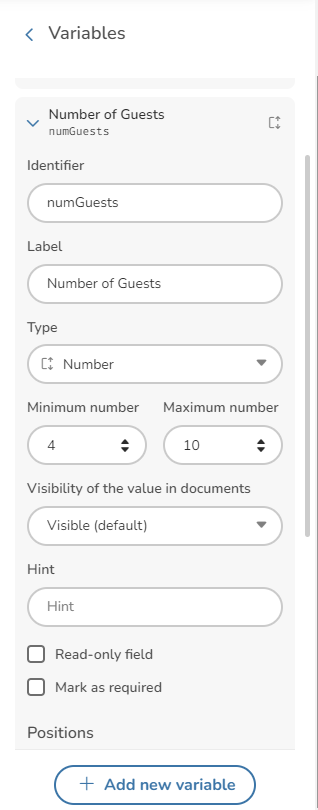
The available settings are:
| Setting | Description |
|---|---|
| Variable Name | The internal identifier. Use camelCase by convention. |
| Label | The display name shown to the user filling out the form. |
| Hide value | Controls visibility of the entered value: Display (shown normally), Hide (value hidden from view), or Hash (value masked with hash characters). |
| Hint | Tooltip text displayed to help the user understand what to enter. |
| Read only | When enabled, the user cannot modify this field. Useful for pre-filled values. |
| Required | When enabled, the field must be completed before the form can be submitted. |
| Positions | Defines where the variable value appears on the document. |
| Initial Value | A default value that pre-populates the field. |
Variable Types
DocQ supports a wide range of variable types to handle different kinds of input.
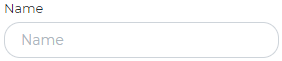
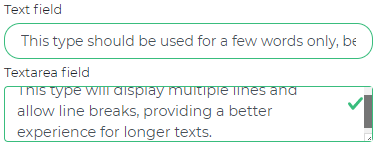
Text
A single-line text input field for short values such as names, titles, or reference numbers.
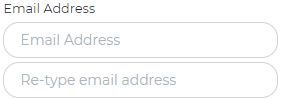
An email address field with built-in format validation. When the confirmation toggle is enabled, the user must enter the email address twice to prevent typos.
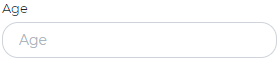
Number
Accepts numeric values only. Useful for quantities, amounts, or identification numbers.
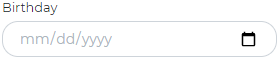
Date
A date picker that lets users select a calendar date.
Date and Time
Similar to the Date type but also includes a time component, allowing users to specify both a date and a time.

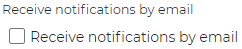
Boolean
A yes/no toggle. You can configure the default value to pre-select one of the options.
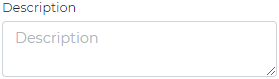
Textarea
A multi-line text input for longer content such as descriptions, notes, or paragraphs.
Dropdown
A select menu where users choose from a predefined list of options. Each option has a label (what the user sees) and a value (what gets stored).
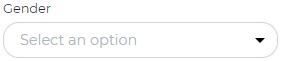
Dropdown configuration includes:
- Import mode -- Bulk-import options from a text list.
- Separator -- Define the character that separates imported values.
- Order -- Control the sort order of options.
- Convert to list -- Transform a dropdown into a multi-select list if multiple selections are needed.
Checkbox
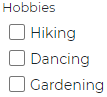
Allows users to select one or more options from a set of checkboxes.
Info
Checkbox variables are only available for PDF templates. DOCX templates do not support the checkbox type.
Currency
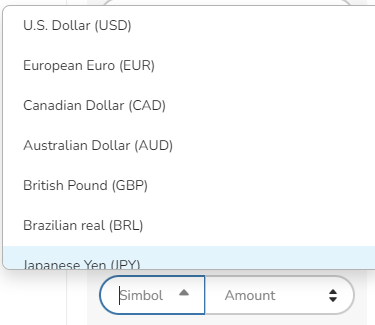
A field specifically designed for monetary values, with formatting appropriate for currency amounts.
Signature
A signature variable that collects an electronic signature from the user. Signature variables support three subtypes:
- Signature -- A full signature field.
- Initials -- A field for the user's initials.
- Date stamp -- Automatically records the date when the signature is applied.
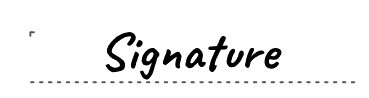
For more details on configuring signature fields, see eSignatures in Templates.
Clause
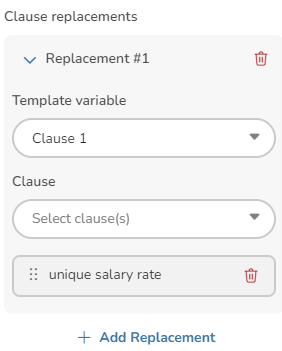
A clause variable pulls content from the Clause Library, allowing users to select from pre-approved legal or contractual clauses. Clause variables can be used with the Edit Document Content workflow step to let reviewers choose or modify clauses during the approval process.
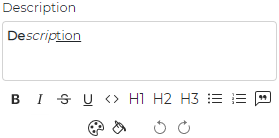
Custom Text
A freeform content field that allows formatted text input. Unlike the standard Text type, Custom Text supports richer content.
Regular Expressions
You can apply regular expression patterns to validate the format of text and number variables. This ensures that users enter values matching a specific pattern before the form can be submitted.
Pre-defined Patterns
DocQ includes several common validation patterns out of the box:
- SSN -- Validates US Social Security Number format.
- Phone number -- Validates common phone number formats.
Custom Patterns
You can define your own regular expression pattern. For example, to validate a credit card number format, you could use a pattern that enforces the expected digit grouping.
Warning
Regular expression validation runs on the client side. Make sure your patterns are tested thoroughly, as an incorrect pattern may prevent users from submitting valid values.
Saving Changes
After configuring your variables, click the Save button to apply the changes. If there are any issues -- such as duplicate names or missing required fields -- the editor displays errors highlighted in red. Resolve all errors before saving.