Signature Templates
Create reusable signature templates to predefine signature positions on documents.
Signature templates let you predefine exactly where signatures, initials, and date stamps appear on a document. Instead of placing signatures manually each time, you create a template once and reuse it across multiple sharing actions and workflow steps. This ensures consistency and saves time when the same document format is signed repeatedly.
Creating a Signature Template for Document Sharing
To create a signature template for use when sharing documents:
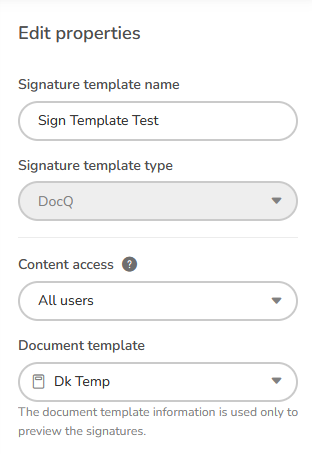
- Navigate to the Signature Templates menu.
- Click +Add Signature Template.
- Enter a name for the template.
- Select the document template to base it on. The document template must be in
.pdfformat. - Choose a Content Access group to control who can view and use this signature template.
- Click Create.
Info
Signature templates can only be created from PDF document templates. If your document template is in .docx format, use the variable-based signature approach described in eSignatures in Templates instead.
Defining Signature Positions in a Workflow
You can attach a signature template to a workflow step so that users are required to sign at specific positions during the approval process.
Setting Up Signature Requirements
- Open the workflow for editing.
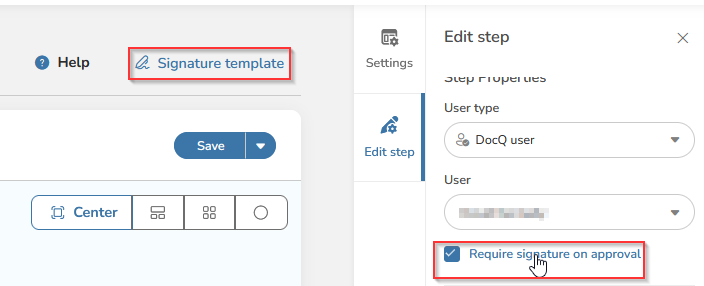
- Select the step where you want to require a signature.
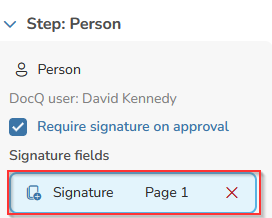
- Enable Require signature on approval.
- Click the Signature template button.
Configuring the Signature
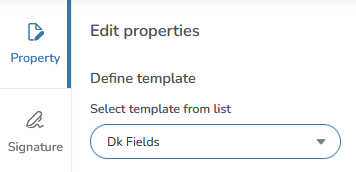
- In the Properties panel, select the signature template to use.
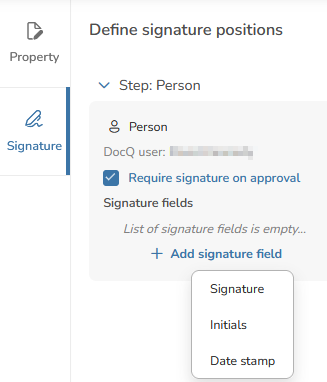
- Navigate to the Signature tab.
- Click on the person assigned to the step.
- Mark Require signature for that user.
- Choose the signature type (Signature, Initials, or Date stamp).
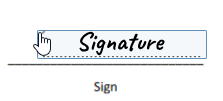
- Click on the document preview to set the position where the signature should appear.
Multiple Signatures Per Step
If a workflow step involves multiple users who all need to sign, you can configure signature positions for each person individually:
- Add a sign step for each user who needs to sign.
- Click on each user and define their signature position on the document.
- Enable the All users must sign checkbox to ensure every assigned user provides their signature before the step can be completed.
Creating a Signature Template During Sharing
You can also create a signature template as part of the document sharing process. When configuring advanced share settings, you have the option to define signature positions directly. This approach is convenient when you need a one-off signature layout for a specific sharing action.
For details on the sharing process and its advanced settings, see Sharing Documents.
Next Steps
- eSignatures Overview -- Learn about all signature collection methods in DocQ
- eSignatures in Templates -- Add signature variables directly to document templates
- Workflows Overview -- Configure workflows that require signatures at approval steps
- Sharing Documents -- Share documents with signature requirements