User Profile
Manage your profile information, change your password, adjust the interface, and define your e-signature.
Your user profile is the central place to manage your personal information, security credentials, interface preferences, and electronic signature. All changes made here apply to your account across the entire DocQ platform.
Accessing Your Profile
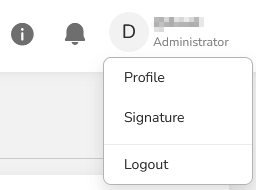
To access your profile settings, click your username in the top-right corner of the DocQ interface. This opens the profile menu where you can navigate to your account settings.
Editing Profile Information
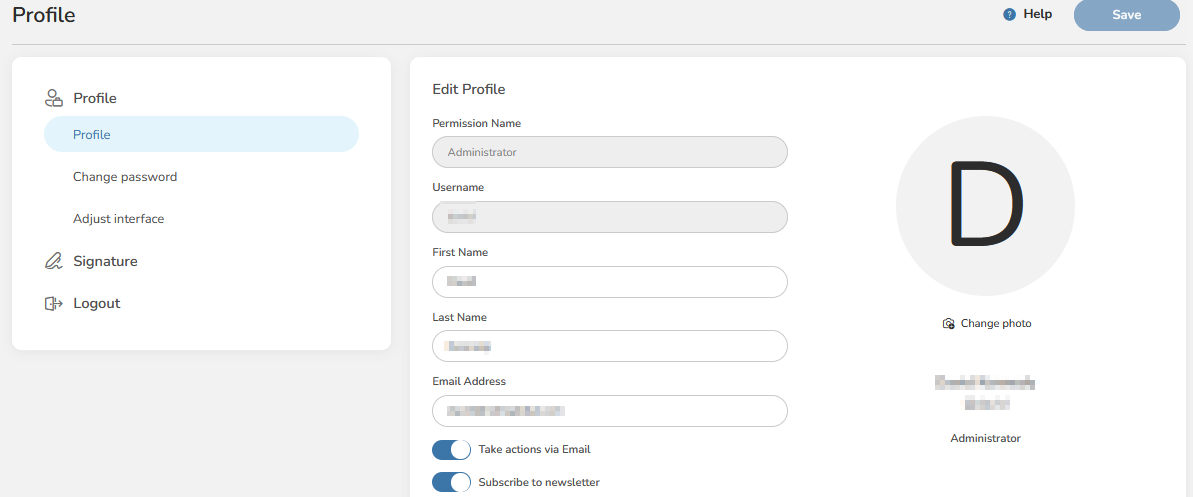
From the profile screen, you can update your personal details:
- Click your username in the top-right corner to open the profile menu.
- Select your profile to open the edit screen.
- Update your name and email address as needed.
- Click Save to apply your changes.
Info
Changes to your profile information take effect immediately after saving. Other users will see your updated name in workflows and document activity.
Changing Your Password
DocQ enforces password requirements that comply with NIST 800-63B guidelines to ensure account security. When setting a new password, the following rules apply:
- Length: between 8 and 64 characters.
- Complexity: must include a mix of uppercase and lowercase letters, as well as special characters.
- History: you cannot reuse any of your last 3 passwords.
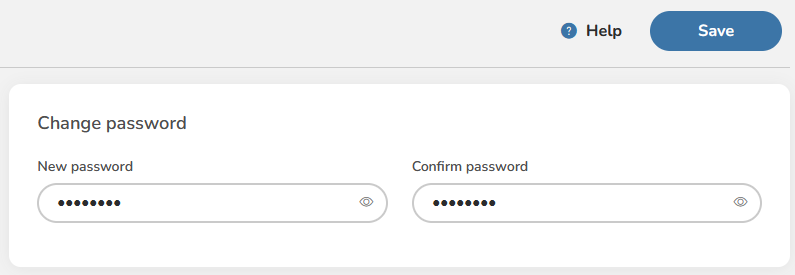
To change your password:
- Navigate to your profile settings.
- Enter your current password for verification.
- Enter your new password and confirm it.
- Click Save to apply the new password.
Warning
If you forget your password, contact your system administrator to have it reset. For security, DocQ does not allow reuse of your last 3 passwords.
Adjusting the Interface
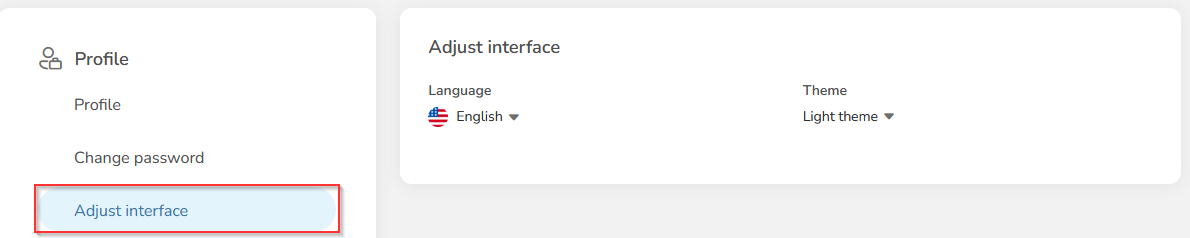
DocQ allows you to customize the interface to match your language and visual preferences:
- Language: choose from English, Spanish, or Portuguese. The interface will update to reflect the selected language throughout the platform.
- Dark theme: enable the dark theme toggle to switch to a darker color scheme, which can reduce eye strain in low-light environments.
To adjust these settings:
- Open your profile settings.
- Locate the interface preferences section.
- Select your preferred language from the dropdown.
- Toggle the dark theme on or off as desired.
- Save your changes.
Defining Your E-Signature
DocQ provides multiple ways to define your electronic signature, which will be used when signing documents within workflows. You can choose from three methods:
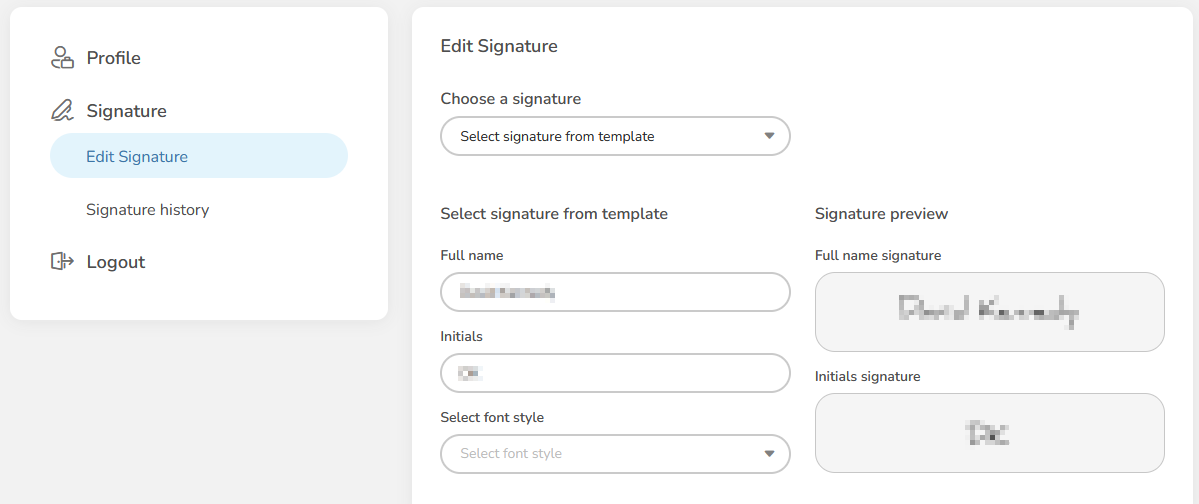
Predefined Templates
Select from a set of predefined signature templates that automatically generate a styled signature based on your name. This is the quickest way to set up a signature.
Drawing a Signature
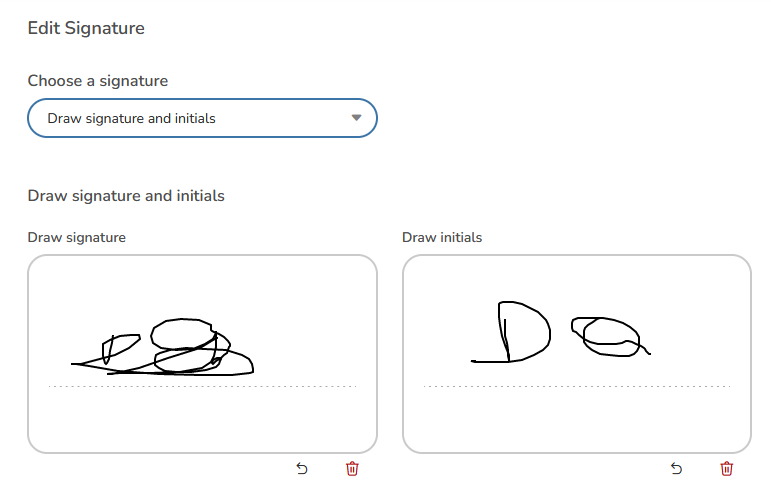
Use the drawing tool to create a freehand signature directly in your browser. This option lets you produce a signature that closely resembles your handwritten one.
- Select the Draw option in the signature setup area.
- Use your mouse or touchscreen to draw your signature in the canvas.
- Click Save to store the signature.
Uploading a Signature Image
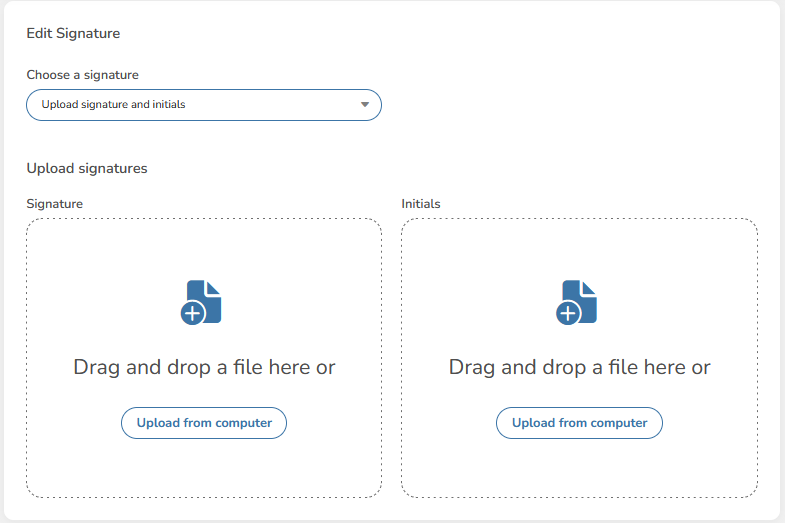
If you already have a digital image of your signature, you can upload it directly:
- Select the Upload option in the signature setup area.
- Choose an image file from your device (PNG format recommended for best quality with a transparent background).
- Click Save to store the uploaded signature.
Signature History
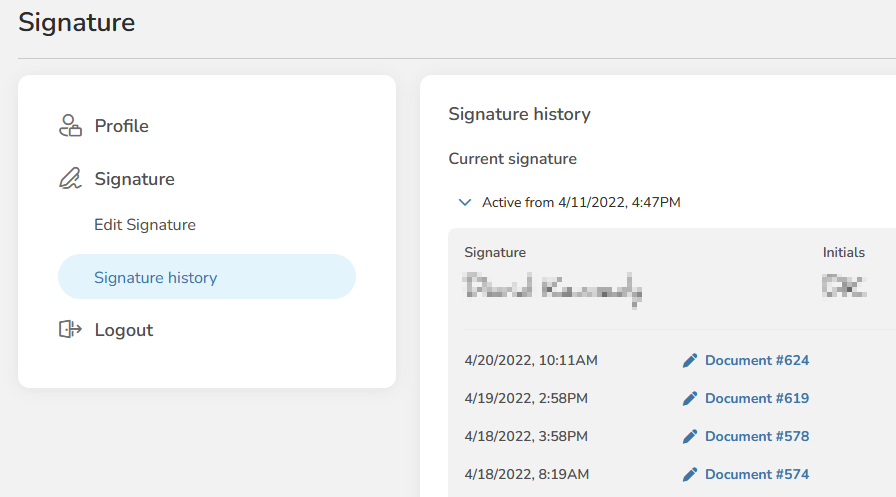
DocQ maintains a complete history of your signature definitions. When you update your signature, the change is applied prospectively — only new documents signed after the change will use the updated signature. Documents that were previously signed retain the signature that was in effect at the time of signing.
You can review your past signatures and the dates they were active in the signature history section of your profile.
Info
Changing your signature does not affect documents you have already signed. Those documents will continue to display the signature that was used at the time of signing.
Next Steps
- Departments & Roles — learn how to organize users within your organization.
- Access Control — understand how permissions govern feature and content access.
- Managing Users — create and manage user accounts in your environment.