Creating Workflows
Create new workflows, navigate the visual canvas, and add steps.
Workflows are built on a visual canvas where you arrange steps and connect them to define the document lifecycle. This page covers creating a new workflow, navigating the canvas, and adding steps.
Creating a New Workflow
To create a workflow:
- Navigate to the Workflows menu from the main navigation.
- Click the +Add workflow button.
- Enter a name for the workflow in the Settings section on the right side of the screen.
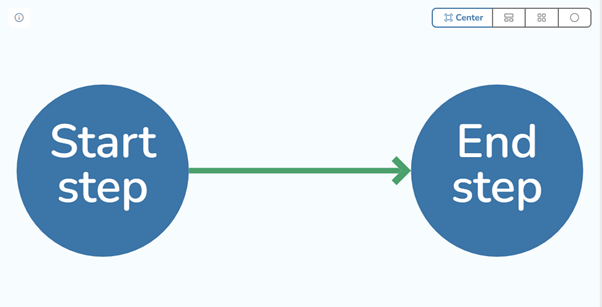
The canvas opens with two default steps already placed: Start and End. These steps are present in every workflow and cannot be removed.
Canvas Navigation
The workflow canvas is a visual editor where circles represent steps and arrows represent the relationships (routing) between them.
Use the following controls to navigate the canvas:
- Pan — left-click and drag on an empty area of the canvas to move your view.
- Zoom — scroll the mouse wheel up or down to zoom in and out.
- Center — click the Center button to reset the viewport and bring all steps into view.
- Layout — use the layout buttons to automatically arrange steps in an organized layout.
- Reposition steps — drag individual steps to reposition them on the canvas for clarity.
Adding Steps
There are two ways to add steps to the canvas:
- Context menu — right-click (or hold left-click) on an empty area of the canvas, then click the step type you want to add.
- Steps list — drag a step type from the steps list on the left side of the screen and drop it onto the canvas.
Once a step is placed on the canvas, you can configure it by clicking on it to open its settings panel.
Info
Every workflow must have a valid path from the Start step to the End step. Steps that are not reachable from Start will cause a validation error when saving. See Troubleshooting for details on resolving validation issues.
Next Steps
- Step Types — learn about all available step types and their configuration options.
- Conditions & Routing — set up conditional paths between steps.
- Workflow Settings — configure workflow properties and associate document templates.