Step Types
All workflow step types — Person, Department, Parallel, Timer, Notification, and more.
DocQ provides 17 step types that cover a wide range of workflow actions — from simple approvals and signatures to HTTP calls, document transformations, and third-party integrations. This page covers the common settings shared across step types, followed by a detailed description of each type.
Common Step Settings
Most step types share the following configuration options.
Custom Name
You can assign a custom name to any step. While optional, custom names improve readability on the canvas, especially in workflows with many steps of the same type.
Notifications on Enter/Leave
Each step can be configured to notify users when a document enters or leaves the step. Notifications are sent via email and appear in the DocQ notification center.
Requiring E-Signatures
For steps that involve document review, you can require an e-signature in addition to the standard review action. This is configured per destination by enabling the Require signature on approval checkbox in the step settings.
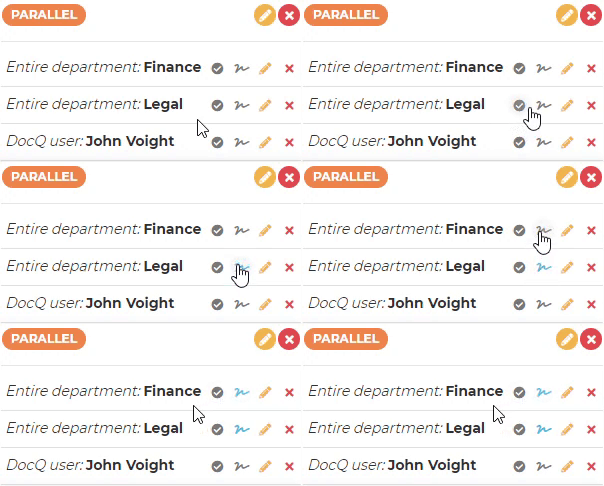
For details on configuring signature templates, see Signature Templates.
Using Variable Values in Email Subject and Body
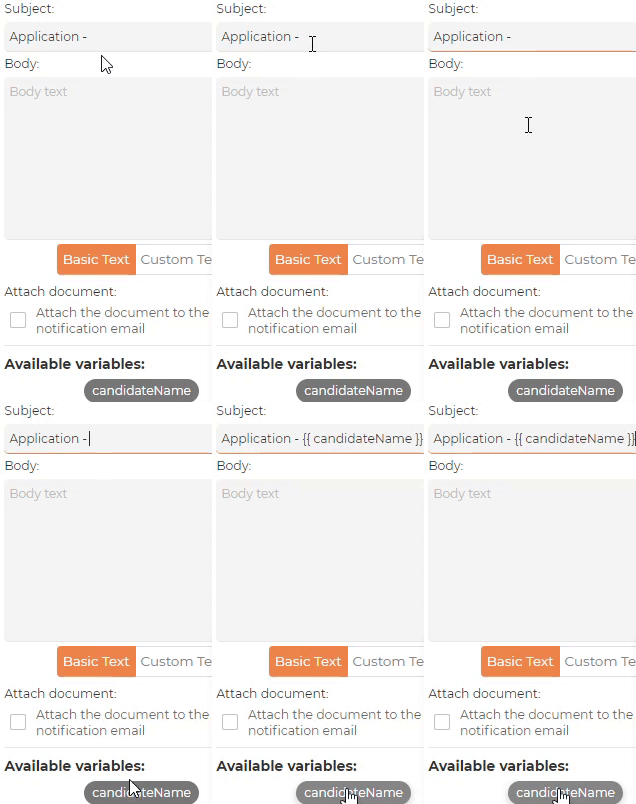
When a document template is associated with the workflow (via Workflow Settings), you can insert template variable values into the email subject and body of step notifications. To use variables:
- Select the template in Workflow Properties to make its variables available.
- In the step's email configuration, the Available variables list is displayed.
- Place your cursor in the subject or body field and click a variable from the list — or type the variable name enclosed in braces.
Using Variable Values for External User Name and Email
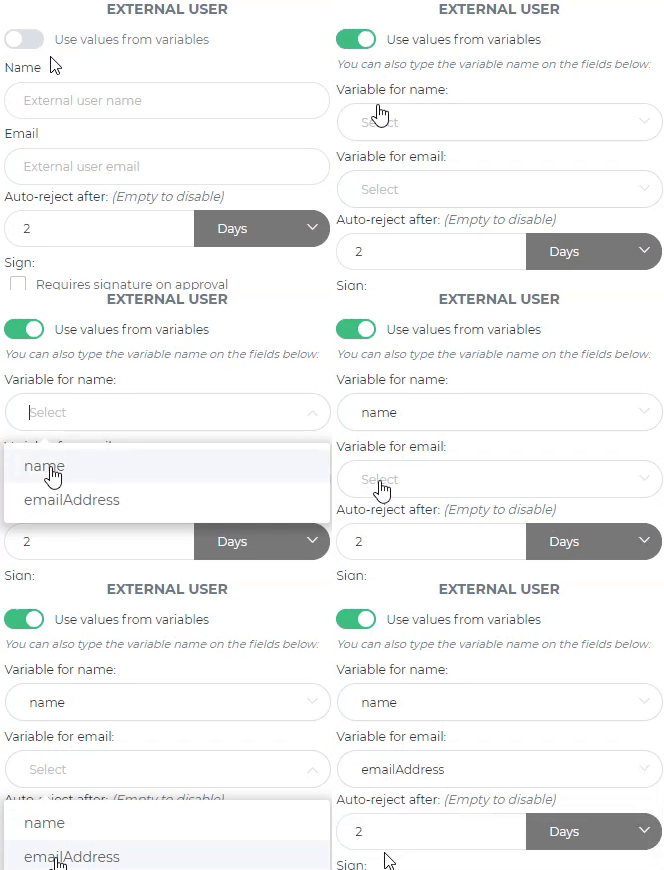
When a step targets an external user (someone without a DocQ account), you can dynamically populate the recipient's name and email from template variables rather than entering them manually:
- Toggle the Use values from variables switch in the step settings.
- Select the variable to use for the recipient's name.
- Select the variable to use for the recipient's email address.
Step Types
Person Step
Assigns the task to a specific person — either a DocQ user or an external user (identified by name and email). Configuration options include:
- Auto-reject expiration — automatically reject the document if no action is taken within a specified time.
- Signature option — require the user to sign the document as part of their action.
Department Step
Assigns the task to a department. Any user within the specified department can act on the document. Configuration options include:
- Signature option — require the acting user to sign.
- Multiple users required — optionally require more than one user from the department to take action before the document advances.
Role Step
Assigns the task to a user with a specific role. The first user holding that role who acts on the document moves it forward. A signature can be required.
Workflow Step
Submits the document to another workflow as a sub-process. The document enters the target workflow, progresses through its steps, and returns to the originating workflow once the sub-workflow completes.
DocuSign Step
Integrates with DocuSign for external signature collection. Users from the previous step are sent the document for signing through DocuSign. The workflow pauses until all required DocuSign signatures are collected.
Split Step
Creates one or more new documents from specified page ranges of the original document and submits each to a selected workflow. The original document continues through the current workflow independently.
To configure a split:
- Click +New split to define a page range and target workflow.
- Optionally, use a variable in the Document name field to dynamically name the new document(s).
- Add additional splits as needed.
Group Step
Assigns the task to multiple targets (persons, departments, or roles), but only one of the specified targets needs to act for the document to advance. This differs from the Parallel step, which requires all targets to act.
- When a department is specified as a target, any single user within that department counts as the required action.
Parallel Step
Assigns the task to multiple targets (persons, departments, or roles), and all specified targets must act before the document advances.
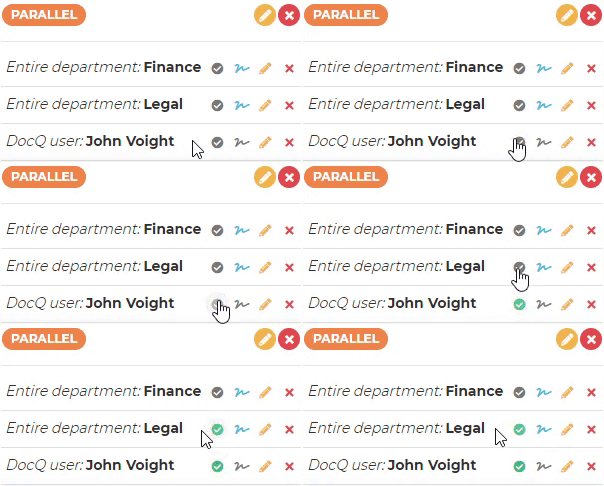
Configuration options include:
- Pre-approval — when enabled, if the document returns to this Parallel step after a previous rejection, users who already approved in the prior round are automatically marked as approved. This avoids requiring the same users to re-approve a document they have already reviewed.
- Wait for remaining targets — controls whether the workflow waits for all targets to complete their actions or returns immediately once enough actions are received.
Form View Step
Provides read-only access to a form with its metadata values displayed. The recipient can view the form data but cannot modify it.
- Target — a DocQ user or an external user (name and email).
- Custom email — customize the email message sent to the recipient.
- Expiration time — set a time limit after which the form view link expires.
Form Attachment Step
Sends a form to a recipient via email. When the recipient completes and submits the form, a new document is created and attached to (or replaces) the main document in the workflow.
Configuration options include:
- Merge metadata options — control how metadata from the submitted form is merged with the existing document metadata:
- Keep new — use only the newly submitted values.
- Keep original — retain the original values.
- Merge priority new — merge both, with new values taking precedence on conflicts.
- Merge priority original — merge both, with original values taking precedence on conflicts.
- Attach position — define where the new document is placed relative to the original:
- Start — prepend the new document.
- End — append the new document.
- Replace — replace the main document entirely.
Notification Step
Sends an advanced notification email without requiring any action from the recipient. This step is useful for informing stakeholders about a document's progress.
- Customizable email — fully control the email subject and body, with variable support.
- Variable-based targets — dynamically determine recipients using template variable values.
- Attach document — optionally attach the document to the notification email.
- Email history — review previously sent emails in the Email review section of the step settings.
Web-Service Step
Makes an HTTP call to an external service when the document reaches this step. Use this for integrations with systems that expose REST or HTTP APIs.
Configuration options include:
- HTTP method — select the request method (GET, POST, PUT, DELETE, etc.).
- URL — the endpoint to call.
- Headers — add custom request headers.
- Parameters — add URL query parameters.
- Body — define the request body content.
- DocQ fields — insert values from the document's template fields into the URL, headers, parameters, or body.
Edit Document Property Step
Performs automated property changes on the document without user interaction. Available operations include:
- Convert to PDF — convert the document to PDF format.
- Rename — change the document's name.
- Manage tags and groups — add or remove tags and group assignments.
- Move to folder — relocate the document to a specified folder.
Edit Document Content Step
Performs automated content changes on the document without user interaction. Available operations include:
- Replace clauses — substitute specific clauses or text blocks within the document.
- Calculations — perform arithmetic or logical calculations using variable values.
- Define variable values — set or update template variable values programmatically.
Timer Step
Introduces a delay before the workflow advances to the next step. The delay can be defined in two ways:
- Static — a fixed duration (e.g., 3 days, 24 hours).
- Dynamic — derived from variable values or schedules, allowing the delay to vary based on the document's data.
Plugin Step
Enables integration with third-party systems through pre-built plugins. The available operations depend on which plugins are configured in your DocQ environment. See Integrations Overview for available integrations.
Action Step
Dynamically specifies the target person, department, or role using template variable values rather than a fixed assignment. This allows the workflow to route documents to different users based on the document's own data — for example, routing to a manager whose name is captured in a form field.
Next Steps
- Conditions & Routing — define conditional paths between steps based on variable values.
- Workflow Settings — associate a document template with the workflow to enable variable-based configuration.
- Troubleshooting — resolve validation errors related to step configuration.