Office Editing
Edit .docx documents and templates directly in DocQ's embedded text editor.
DocQ includes an embedded text editor that lets you edit .docx documents and templates directly in the browser, without needing Microsoft Office or any external software installed.
Supported Formats
The embedded editor works exclusively with .docx (Microsoft Word) files.
Warning
PDF files cannot be edited in the text editor. When a .docx document receives signatures or is merged with other documents, it is automatically converted to PDF format.
Opening the Editor
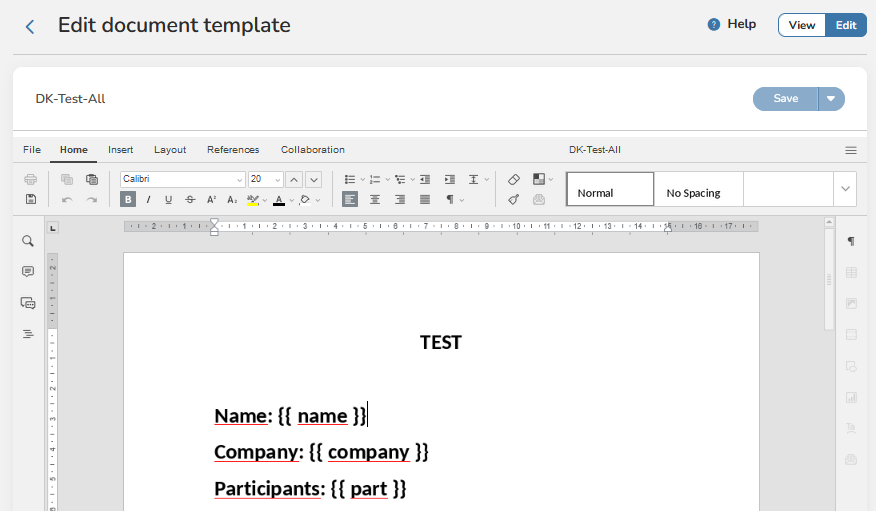
To edit a document template in the embedded editor:
- Navigate to Templates > Document Templates.
- Find the
.docxtemplate you want to edit. - Click on the template to open it.
- Click the Edit button to enter editing mode.
Info
For editing document content (not templates), open the document from the Documents list and use the content editing controls. Content editing is only available for .docx files with Active status.
Format Bar
The editor provides a format bar with tools for styling and structuring your document content.

The format bar includes controls for:
- Text formatting -- Bold, italic, underline, strikethrough, font size, and color
- Paragraph styling -- Alignment, indentation, line spacing, and lists
- Tables -- Insert and configure tables with rows and columns
- Elements -- Insert images, links, page breaks, and other document elements
Info
Click the Help button in the editor toolbar for a comprehensive guide to all available editing features and functionality.
Working with Variables
Variables allow you to insert dynamic placeholders into templates that are automatically populated when a document is created from the template.
To insert a variable, type the variable name enclosed in double brackets -- for example, {{customer_name}}. DocQ automatically recognizes text in double brackets as variables.
Editing Variable Settings
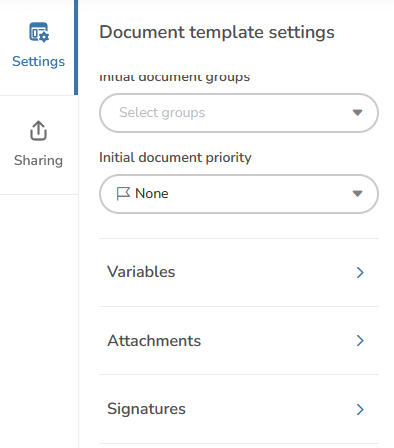
To configure a variable's type and behavior:
- Navigate to Settings > Variables.
- Find the variable you want to configure.
- Click the arrow to expand the variable's settings.
Variable Types
Each variable has a type that determines what kind of data it accepts and how it is displayed in the final document.
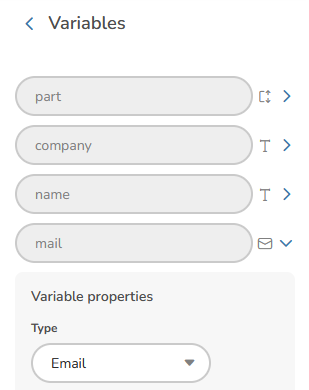
Available types include text, number, date, dropdown selection, and other formats depending on your configuration. The type you select controls the input field presented to users when they fill in the variable during document creation.
For a deeper dive into variables, see Variables.
Saving Changes
To save your work in the editor:
- Switch from Edit mode to View mode.
- Wait approximately 10 seconds for the editor to finalize the content.
- Click the Save button.

Warning
Always switch to View mode and wait before saving. Saving while still in Edit mode may not capture your latest changes. Confirm that the save notification appears before navigating away.
Next Steps
- Templates Overview -- Learn about creating and managing document templates
- Variables -- Configure dynamic variables for templates
- Documents Overview -- Understand the document lifecycle in DocQ