Reviewing Documents
Review, annotate, and e-sign documents as an internal or external user.
DocQ supports document review for both internal users (members of your organization) and external users (recipients who received a shared document link). The review experience differs slightly depending on the user type.
External User Review
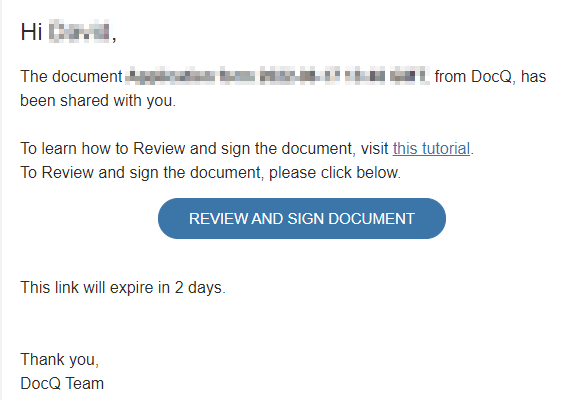
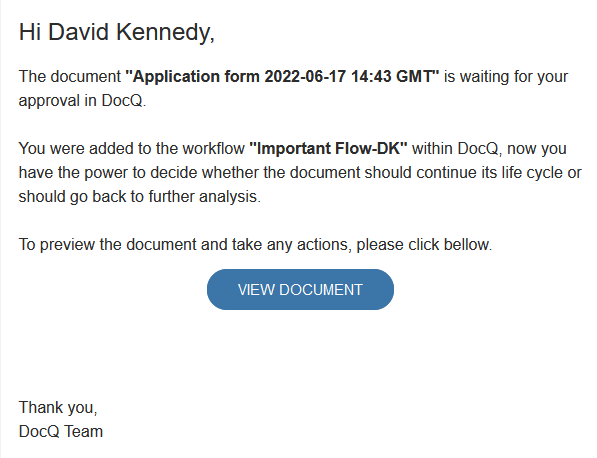
External users receive an email notification when a document is shared with them.
Accessing the Document
- Open the email notification.
- Click the Review and sign document button.
Info
The review link has an expiration time set by the sender. After expiration, the link will no longer grant access to the document.
Reviewing
After clicking the link, the external user sees a document preview.
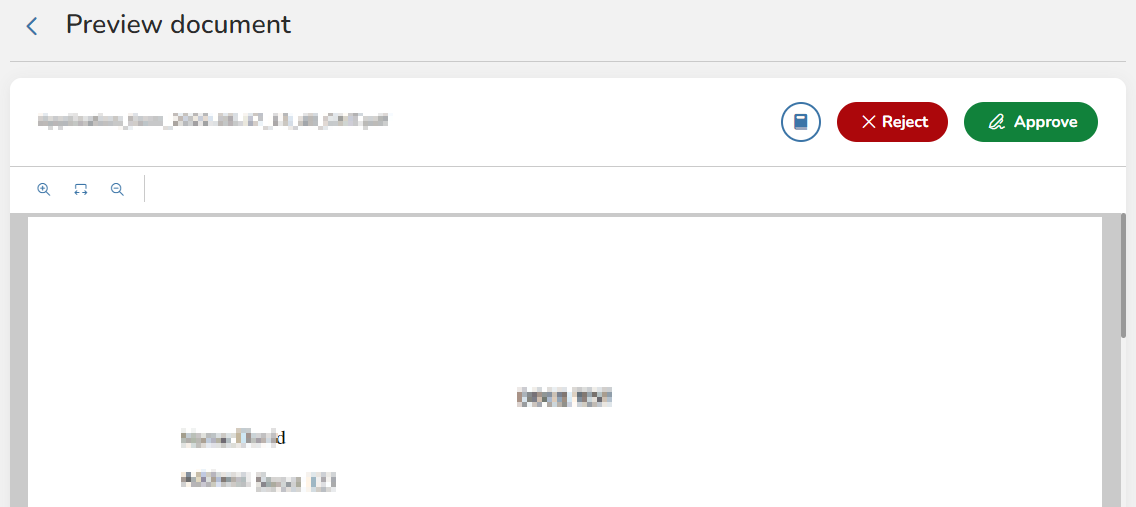
From the preview, the external user can:
- Approve -- Accept the document as-is.
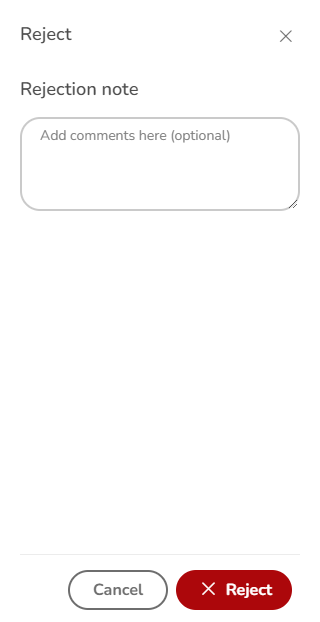
- Reject -- Decline the document, with an optional note explaining the reason.
Signing as an External User
If the document was shared with Sign access level, the external user is prompted to provide an e-signature:
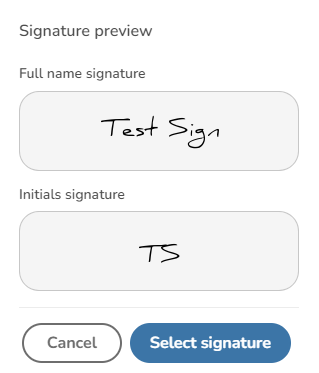
- Define your e-signature by choosing from a template or drawing one freehand.
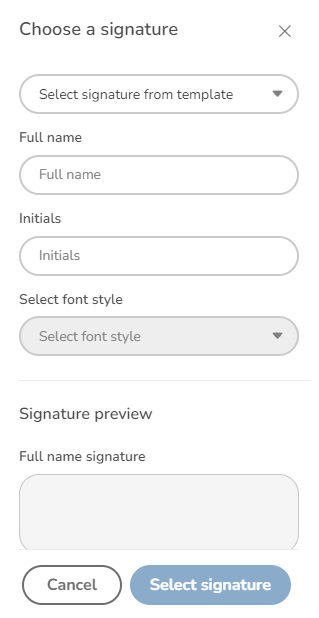
- Click Select signature to confirm your chosen signature.
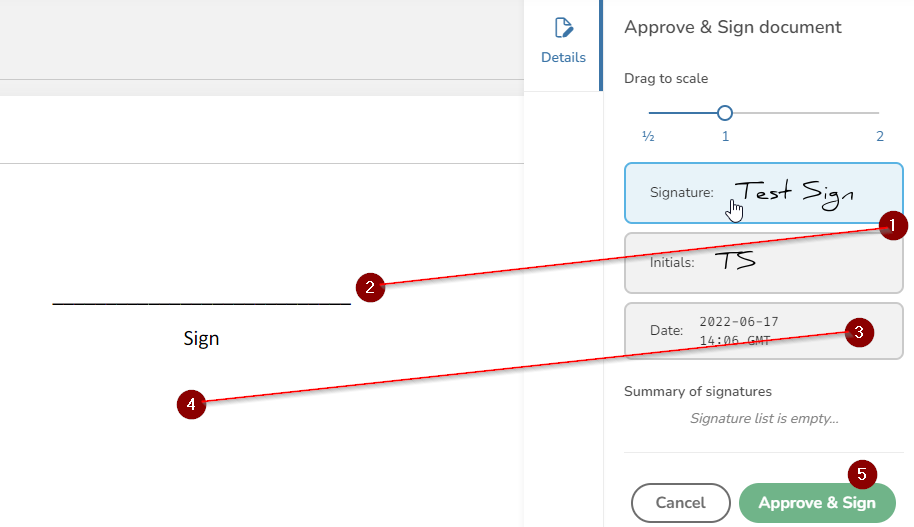
- Place the signature on the document at the designated or preferred location.
- Click Approve and sign to complete the process.
Internal User Review
Internal users (members of your DocQ instance) can access documents for review through two channels:
- Email notification -- If the Take actions via Email setting is enabled, internal users receive an email link similar to external users.
- Documents list -- Navigate to the Documents section in DocQ to find documents assigned to you for review.
Action Spree
For .pdf documents, DocQ offers an Action Spree button that streamlines the review process when you have multiple documents waiting for action. This lets you quickly move through your review queue.
Info
Action Spree is only available for .pdf documents.
Reviewing as an Internal User
Internal users see a document preview with the same core actions available.
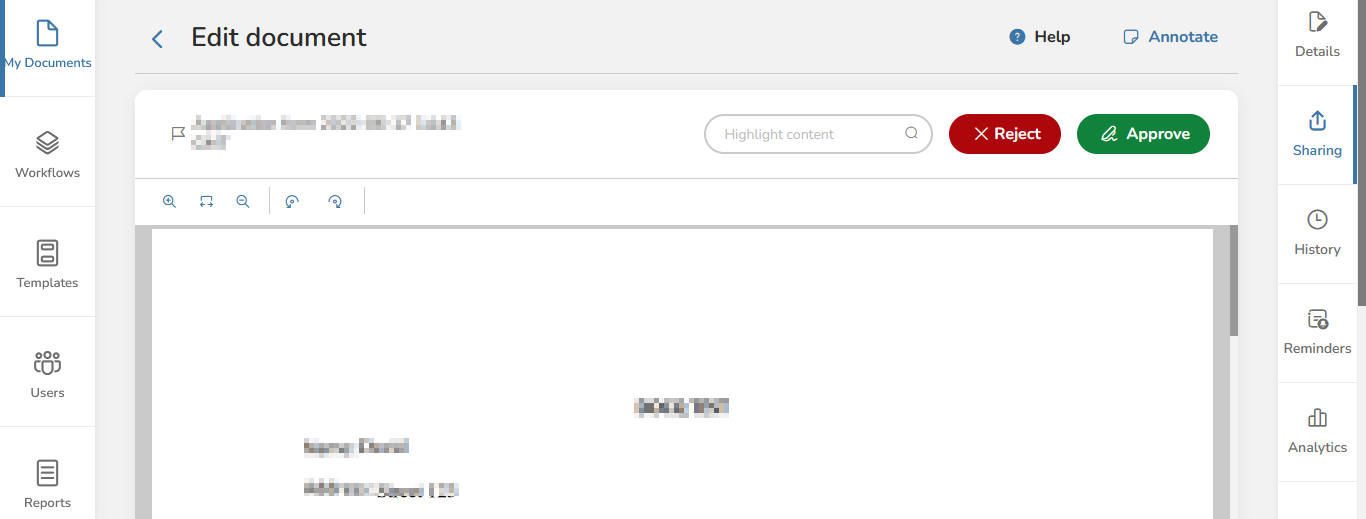
From the preview, you can:
- Approve -- Accept the document.
- Reject -- Decline the document, with an optional note.
Annotating PDFs
Internal users can add annotations to PDF documents during review. Click the Annotate/Highlight button to access the annotation tools.
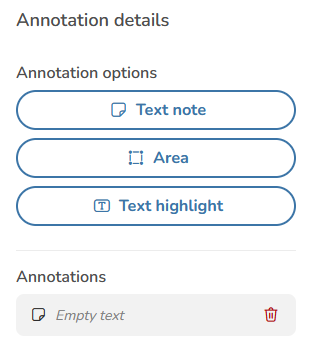
DocQ supports three annotation types:
| Type | Description |
|---|---|
| Text Note | Add a text comment anchored to a specific location on the document |
| Square Area | Draw a rectangular highlight around a section of the document |
| Text Highlight | Highlight specific text within the document |
After adding annotations:
- Save or remove individual annotations as needed.
- Edit existing annotations to update their content.
- Click Save Changes to persist all annotations.
- Click Return to go back to the main review view.
Searching and Highlighting Content
Use the Highlight content field to search for specific text within the document. Matching text is visually highlighted in the preview to help you locate relevant sections quickly.
Info
The search highlight is a visual aid only and does not make any changes to the document itself.
Signing as an Internal User
When a document requires your signature as an internal user:
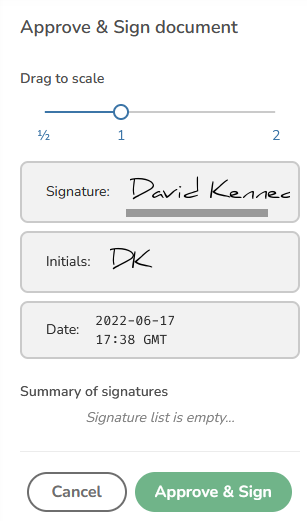
- Click Approve and sign.
- Your current DocQ e-signature is displayed automatically.
- Place signature elements on the document by clicking the desired location, or use drag and drop.
- Use the Clone feature to replicate a signature element across multiple pages.
- Adjust the Signature scale slider to resize the signature as needed.
Info
Your e-signature is configured in your user profile settings. To update it, see User Profile.
Next Steps
- Sharing Documents -- Configure sharing options and signature templates
- E-Signatures Overview -- Learn about DocQ's e-signature system
- Versions & History -- View the complete audit trail of review actions